Verify a signed document.
Reports, certificates and letters from XRAY CyberSecurity are PDF files with a digital signature. Here is how to check it in about a minute.
A valid signature proves two things: the document was issued by us, and nothing in it has changed since we signed it.
What a valid signature looks like
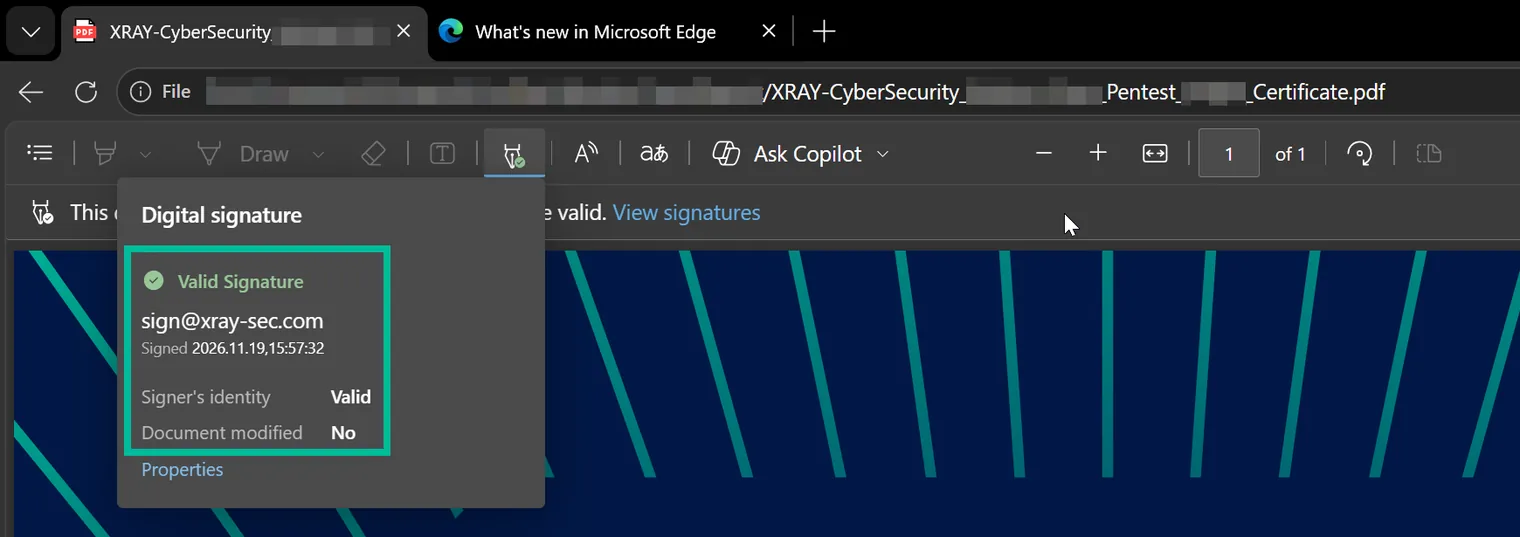
- Signer: sign@xray-sec.comOur only signing address. A signature from any other address is not ours.
- Document not modifiedThe file is exactly as we signed it.
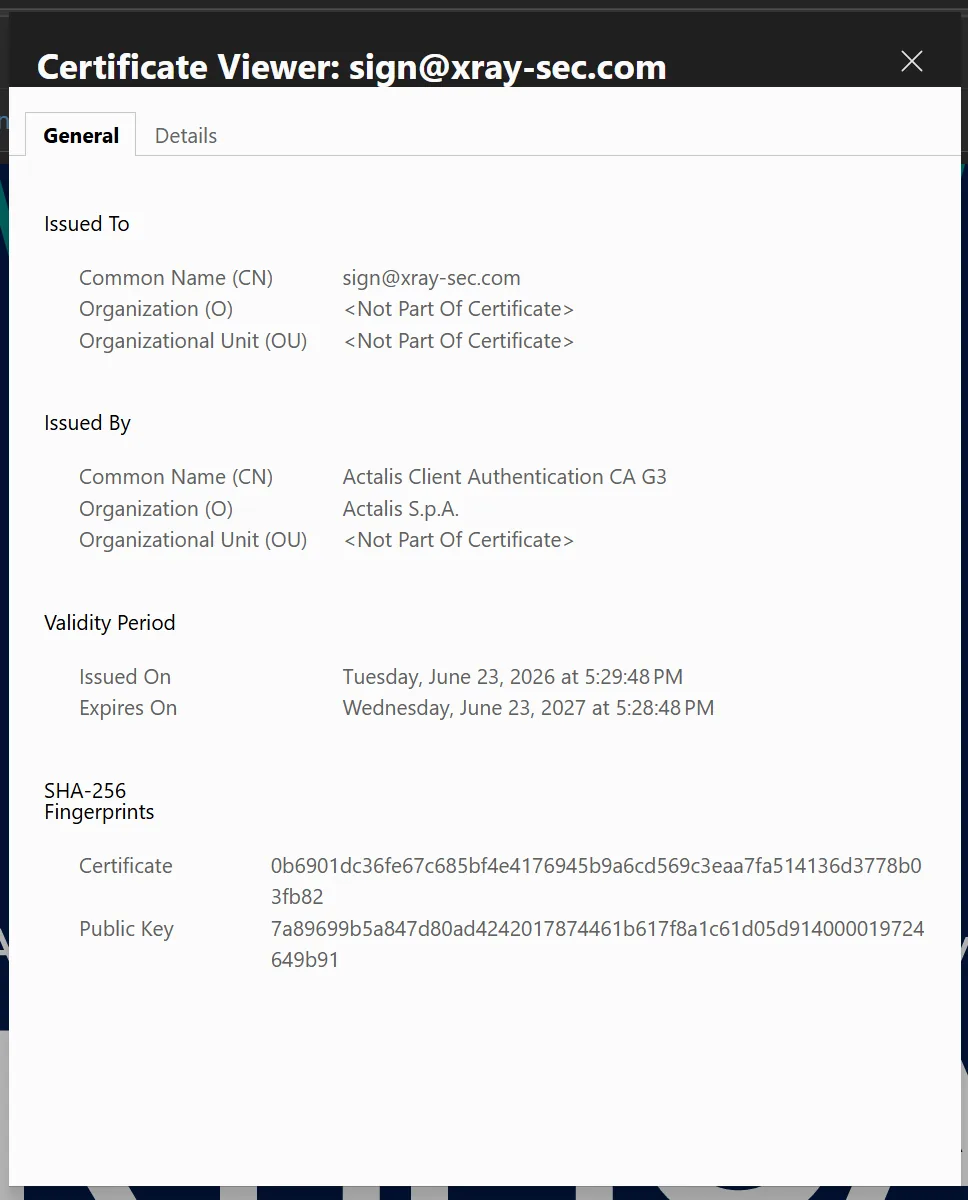
- Certificate issued by ActalisActalis Client Authentication CA G3, a public certificate authority.
Method 1. Microsoft Edge on Windows
Recommended: nothing to install or configure.
- Right-click the PDF file → Open with → Microsoft Edge.
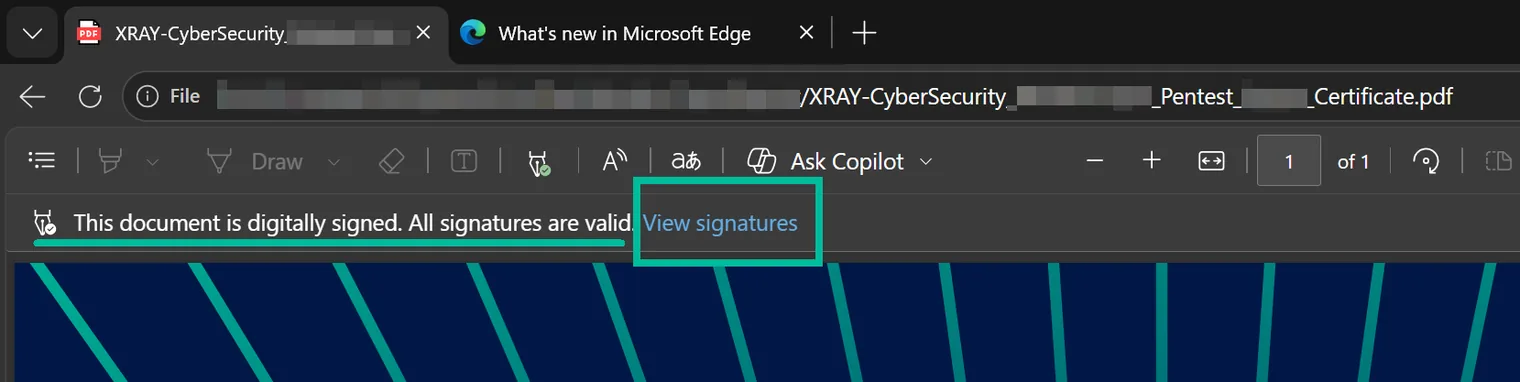
- At the top, Edge shows “This document is digitally signed. All signatures are valid.” Click View signatures.
- Check: Valid Signature, signer sign@xray-sec.com, Signer’s identity Valid, Document modified No.
- Optional, for full certainty: click Properties, then View next to Certificate, and compare the SHA-256 certificate fingerprint with ours below.
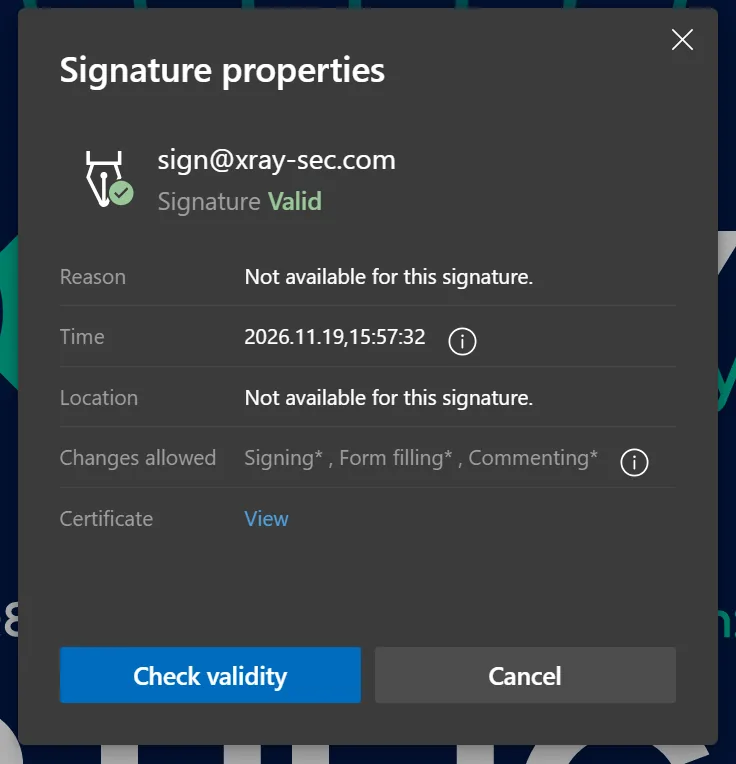
Screenshots are from Edge in English; in another language the labels differ, but the layout is the same. Edge on macOS does not check signatures by default — use Method 2.
Method 2. Adobe Acrobat Reader (Windows or Mac)
- Open the PDF in the free Adobe Acrobat Reader.
- Open the Signature panel (button in the bar above the document) and expand the signature.
- Check that the document has not been modified since the signature was applied, and that the signer is sign@xray-sec.com.
- If Reader shows the signer’s identity as unknown, open the signature’s certificate details and compare the SHA-256 fingerprint with ours below.
Method 3. Linux (terminal)
- Run
pdfsig(packagepoppler-utils):
On Ubuntu (Firefox installed as a snap), point it to Firefox’s certificate store:pdfsig document.pdfpdfsig -nssdir "sql:$(dirname "$(ls ~/snap/firefox/common/.mozilla/firefox/*/cert9.db | head -1)")" document.pdf - Check the output:
Signer Certificate Common Name: sign@xray-sec.com,Total document signed,Signature Validation: Signature is Valid.andCertificate Validation: Certificate is Trusted. - If the certificate isn’t shown as trusted, compare the signer’s fingerprint with ours below:
pdfsig -dump document.pdf
openssl pkcs7 -inform DER -in document.pdf.sig0 -print_certs \
  | awk '/CN=sign@xray-sec.com$/{f=1} f' | openssl x509 -noout -fingerprint -sha256
Our signing certificate
| Issued to | sign@xray-sec.com |
|---|---|
| Issued by | Actalis Client Authentication CA G3 (Actalis S.p.A.) |
| Valid | 23 June 2026 – 23 June 2027 |
| SHA-256 fingerprint | 0b6901dc36fe67c685bf4e4176945b9a6cd569c3eaa7fa514136d3778b03fb82 |
The fingerprint may be shown in upper or lower case, with or without spaces or colons — only the characters matter.
No Windows PC or Adobe Reader?
Chrome, Firefox, macOS Preview and phone apps display the PDF but do not check signatures. If you can’t verify the signature, contact us at ping@xray-sec.com — we’ll help.
If the check fails
If the signature is invalid, the document is shown as modified, or the signer is not sign@xray-sec.com, do not rely on the document and contact us at ping@xray-sec.com.
Tip: always forward the original file. Re-saving or “printing to PDF” creates a new file without our signature.